How to Build a Video Swipe File for Short-Form Content (Across TikTok, Reels & Shorts)
Guest post by The My Playlist team · · 5 min read
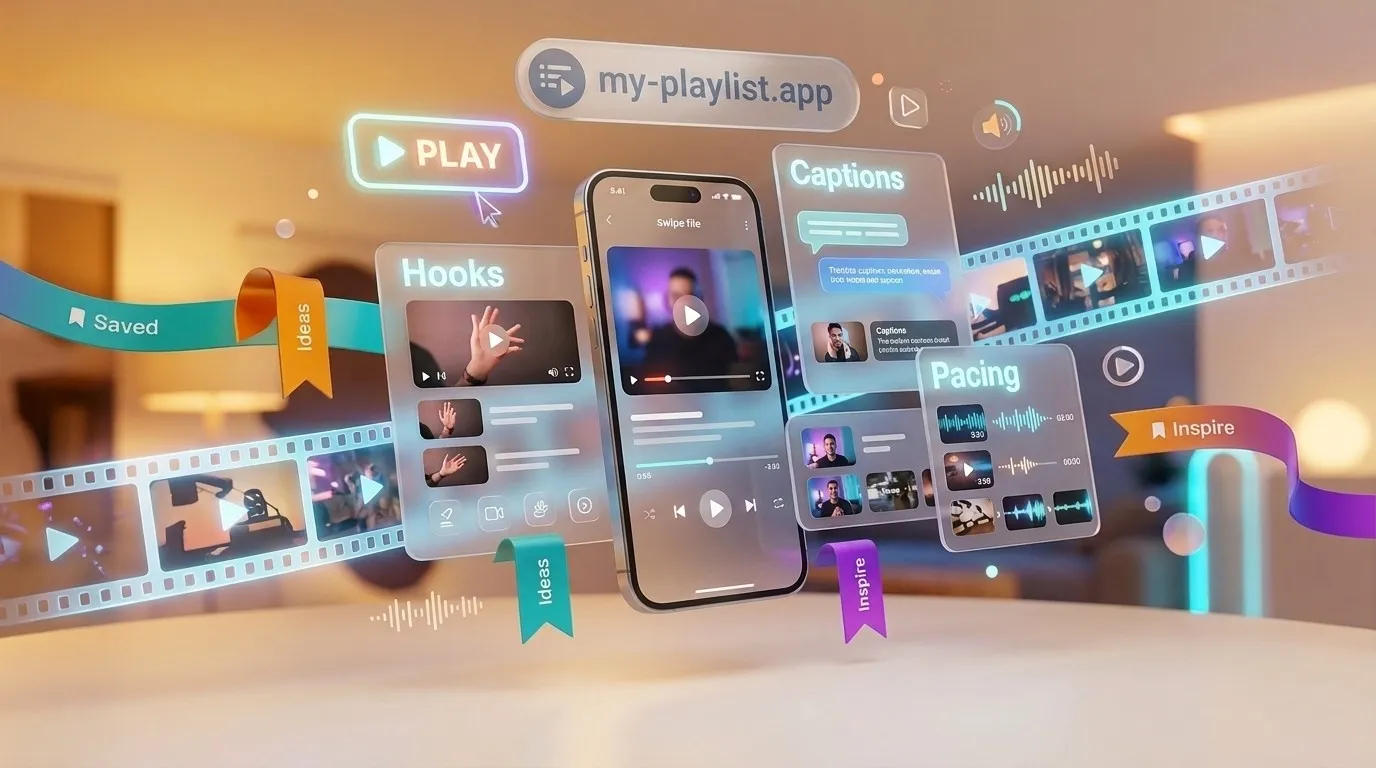
Every creator has hit this wall: you sit down to edit, ready to make a high-energy video, but you draw a blank. Or worse, you remember an incredible hook you saw on your phone two days ago, scroll through hundreds of saved posts across three different apps, and either can't find it or see a gray box that says "This video is no longer available."
Top creators rarely rely on spontaneous inspiration. Instead, they maintain a dedicated "swipe file" or reference library. Whenever they spot a magnetic three-second hook, a clever dynamic caption style, or a seamless B-roll transition, they save it into an organized system so they can dissect the pacing when it is time to write and edit.
This guide outlines a simple, lightweight workflow for building a cross-platform video reference library. It runs entirely in your browser without requiring clunky desktop software or browser extensions.
Why native bookmarks and "likes" fail creators
Most creators start out by tapping the bookmark or like button inside TikTok, Instagram, or YouTube. Once you save more than a few dozen videos, this habit turns into an unmanageable mess.
Fragmented across multiple apps
Your best creative references live in different places. TikTok has snappy pacing, Instagram Reels has aesthetic typography, YouTube Shorts has dense educational breakdowns, and X has breaking news commentary. Having your inspiration scattered across four different apps breaks your creative flow every time you need an idea.
Saved folders turn into digital clutter
Social feeds order bookmarks by date rather than by creative purpose. When you want to review hooks for a cooking tutorial, you are forced to scroll past comedy skits, pet videos, and lifestyle vlogs you saved on a whim.
Dead links and low-quality saves
Short-form content is fragile. If a creator changes their audio track, sets a video to private, or deletes a post, your saved reference disappears. And saving through an app's own share button often compresses the video and adds a moving logo, which makes it hard to study text overlays or editing cuts.
What is My Playlist? A cloud workspace for video references
To solve this problem, solo creators and production teams use My Playlist.
It is not just a one-off video downloader. It is a cross-platform "watch later" list and private media library designed specifically for video. The core premise is straightforward: paste a public video link, organize it into a custom playlist, and keep your own copy in a cloud library.
Cross-platform support in one place
Whether a link comes from TikTok, YouTube, X or another supported site, My Playlist files it into your chosen playlist within seconds.
Playlists structured for video production
You can set up distinct playlists mapped directly to your creative workflow:
- Hook Formulas: First-three-second questions, visual reveals, and sound effects that stop the scroll.
- Caption & Layout Styles: Bilingual subtitles, kinetic text presets, and keyword highlight cards.
- B-Roll & Match Cuts: Seamless transition techniques, push-in zooms, and sound beds.
- Competitor Breakdowns: High-performing formats from creators in your niche.
Clean MP4 copies you can study
Videos you save to your library are kept as MP4 files: up to 720p on the free plan, and at the best available quality on paid plans. When you open a clip on desktop, you see the exact crop and typography the editor used.
A copy that outlasts the original post
Links stay in your playlists for as long as you keep them. For high-value case studies, save the item to your Library: your own copy stays available even if the original post is taken down or made private, for as long as your plan keeps it.
A 5-step daily workflow for capturing video ideas
Building an active swipe file does not take extra hours. It takes a few seconds while you are already browsing.
Step 1: Set up your core playlists
Head over to My Playlist, create a free account, and set up three foundational lists:
Hooks & Openers(for scriptwriting)Captions & Visuals(for post-production)Pacing Breakdowns(for editing studies)
Step 2: Save on mobile as you scroll
Open My Playlist in your mobile browser, or install it to your home screen. Whenever you find a compelling clip on TikTok or Reels, tap Share, copy the link, and paste it into a playlist. On Android, once it's installed, you can also send links to it straight from the Share menu.
Step 3: Jot down breakdown notes
When you rewatch a saved clip, write down the exact timestamps that caught your attention, in a notes doc you keep next to each playlist:
- 00:01: Countdown sound effect paired with high-contrast title text.
- 00:15: Picture-in-picture punch cut to B-roll footage.
- Music ducking slightly before the key punchline.
Step 4: Keep high-value clips in your Library
For evergreen reference material, save the item to your Library. Your own copy stays put even if the post is later removed or its audio is muted for copyright. A free account can save two videos a day.
Step 5: Connect directly to your editing and captioning tools
When it is time to produce your own video, download the reference MP4 and place it beside your project timeline.
If you want to dissect how a creator structures their spoken cadence, drop the video into Captions Generator:
- Use the free AI transcription to get every word with its timestamp. You can see exactly what they say in the first three seconds, how quickly the lines come, and which words they repeat.
- Once you shoot your own cut, use Captions Generator to burn in styled captions or export an SRT subtitle file ready for upload.
From gathering references to analyzing script cadence and exporting final subtitles, your entire creative pipeline stays lightweight inside the browser.
Frequently asked questions
Is My Playlist free?
Yes, it's free to start. Adding links to your playlists is free, and a free account can save two videos a day to your Library, up to 720p and 25 MB each, within a monthly storage quota. Paid Pro, Pro+ and Lifetime plans raise those limits.
Do I need to install a heavy app on my phone?
No. My Playlist runs in any modern mobile browser, so there's no app-store download. You can also add it to your home screen.
Is it OK to save other creators' videos?
Keep saved videos for private study and reference, and never re-upload another creator's work as your own. Copyright rules differ by country, so if you plan to reuse any part of a clip, check the platform's terms and ask the creator first.
Final thoughts
Improving at short-form video does not require guessing what works. A well-maintained swipe file turns the most successful editors and storytellers on the internet into your personal mentors.
Instead of letting your favorite ideas vanish inside scattered social bookmarks, give them a home of their own. The next time a video makes you stop scrolling, start by saving that first link.